
Install IPTV on TiviMate for Android & ChromeOS
Learn how to set up TiviMate on Android & ChromeOS using an M3U Playlist or Xtream Codes. Follow step-by-step instructions with screenshots, EPG setup tips, and solutions to common issues.

How to Install TiviMate on Android & ChromeOS
Follow the steps below to get TiviMate IPTV Player on your Android and ChromeOS devices.
1 Open Google Play
- Open the Google Play Store on your Android or ChromeOS device, search for TiviMate IPTV Player, and click Install.

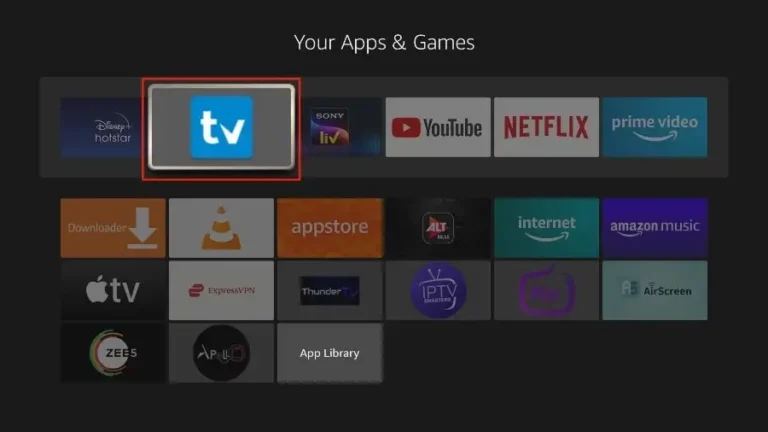
2 Open the App
- Open the TiviMate IPTV Player app.
3 Add Playlist
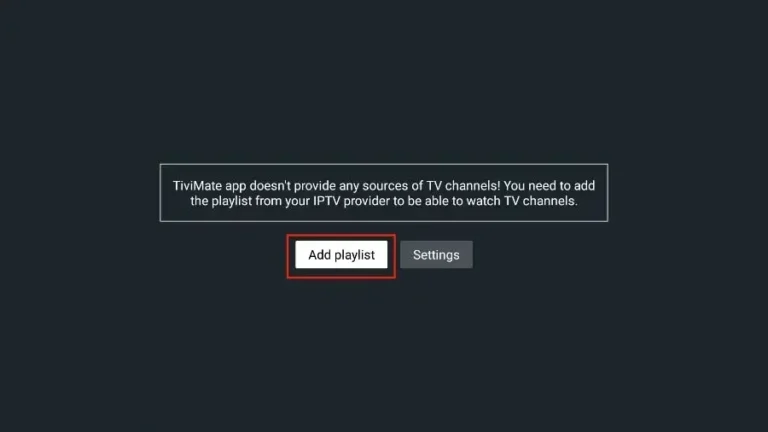
- Select Add playlist.
4 Xtream Login
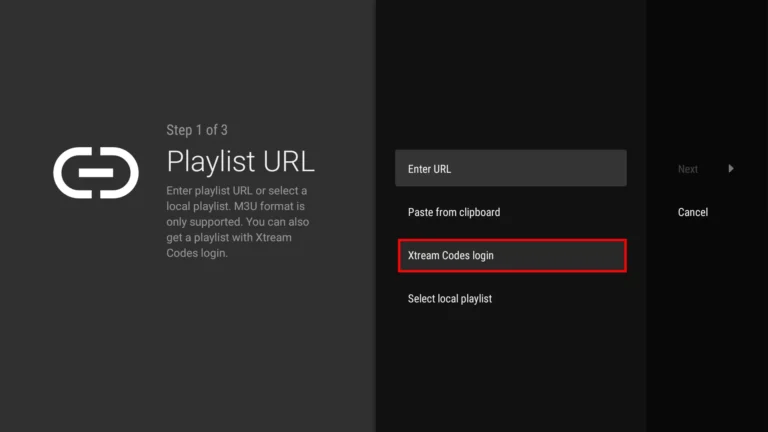
- TiviMate will prompt you to add a playlist using an Xtream code, M3U link, or Stalker portal.
- Click Xtream Codes login and then Next.
5 Get Your Details
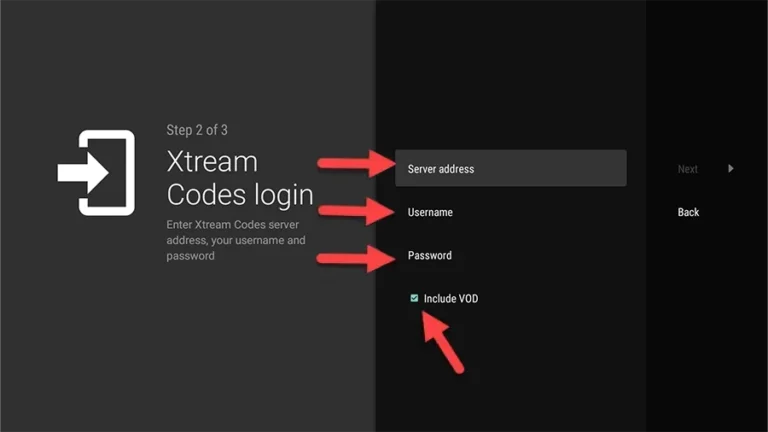
- When you subscribe to StreamVista, you’ll receive an email containing your login details.
- Use your Server Address, Username, and Password.
- Check Include VOD if you want VOD content.
6 Finish Setup
- Go on and the channels will appear after a while.
- Congratulations! You've now completed the setup of the TiviMate app for seamless streaming.
Important About TiviMate App
You can access Live TV channels exclusively through TiviMate IPTV Player, which requires a premium subscription for extra features such as favorites, recording, and watching movies and series. With a single premium subscription, you can use the app on up to 5 devices.
Premium Activation
If you want to purchase the TiviMate premium app, open TiviMate, go to Settings, click Unlock Premium, and create an account to complete your purchase.
Lifetime: $29.99
Yearly: $9.99
7 Final Note
- Once the playlist finishes loading, your channels will appear and you can start streaming right away.
Congratulations! You've now completed the setup of the TiviMate app for seamless streaming.