
Install IPTV on TiviMate for Fire TV Stick
Learn how to set up TiviMate on Fire TV Stick using an M3U Playlist or Xtream Codes. Follow step-by-step instructions with screenshots, EPG setup tips, and solutions to common issues.

How to Install TiviMate and Configure It
Follow the steps below to install TiviMate, add your playlist, and activate Premium for the best streaming experience.
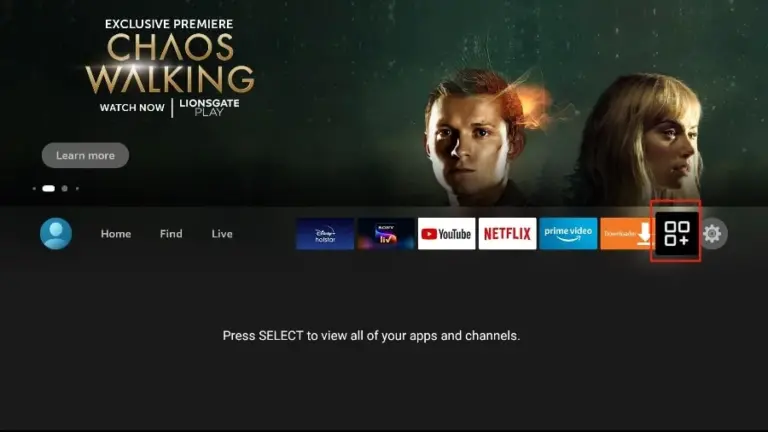
1 FireStick Home
- Go to the Apps menu page from the FireStick Home page.
2 Downloader App
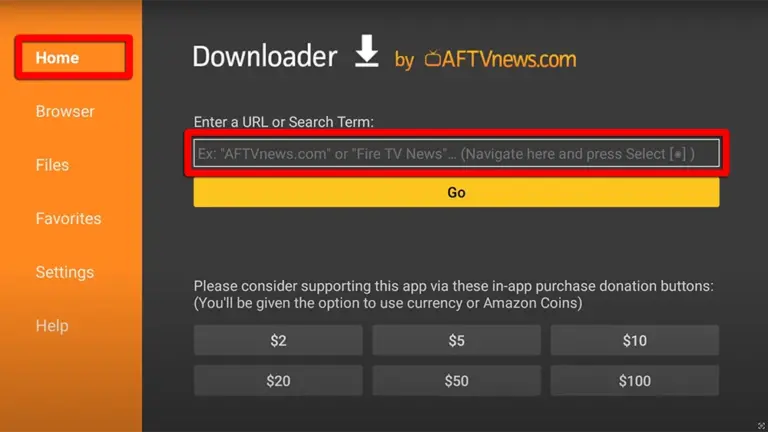
- Open the Downloader app and select Enter a URL on the Home screen.
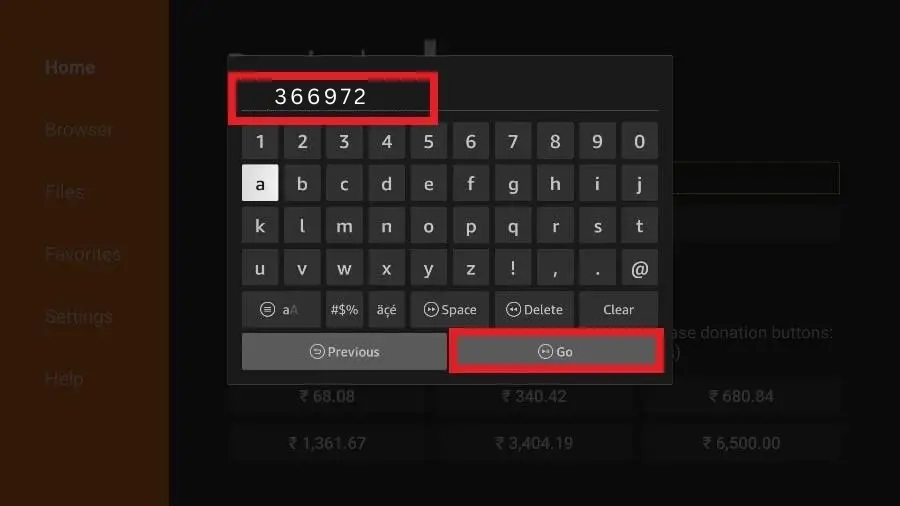
3 Enter Code
- Type the following code exactly as shown here: 366972 to download Tivimate.
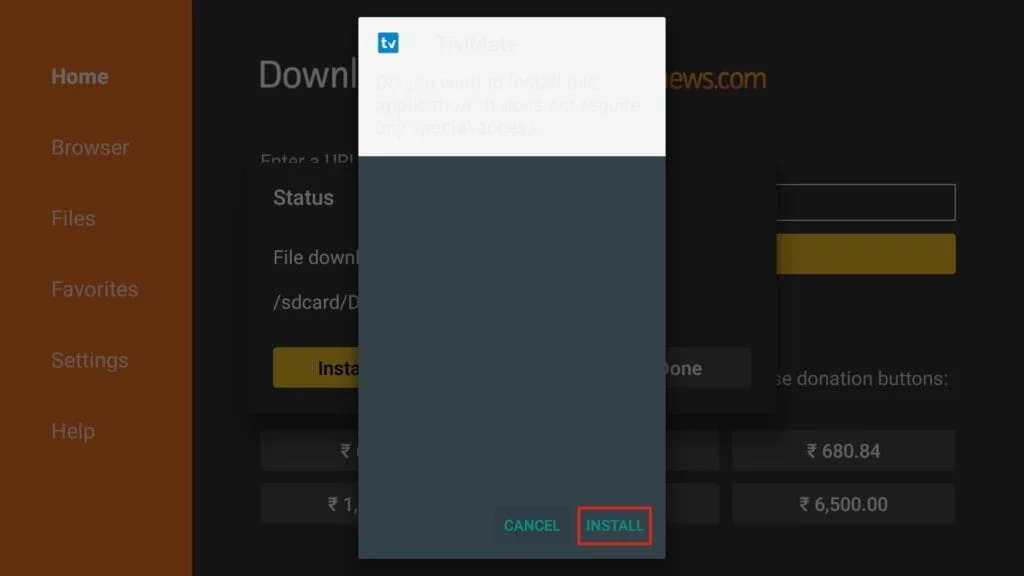
4 Install TiviMate
- Click Install when prompted.
5 Open the App
- Open the TiviMate app.
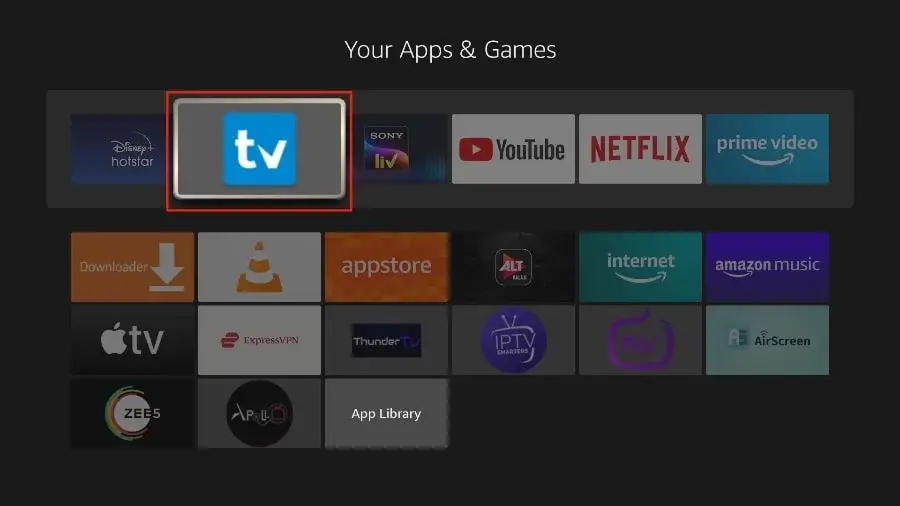
6 Add Playlist
- Select Add playlist.
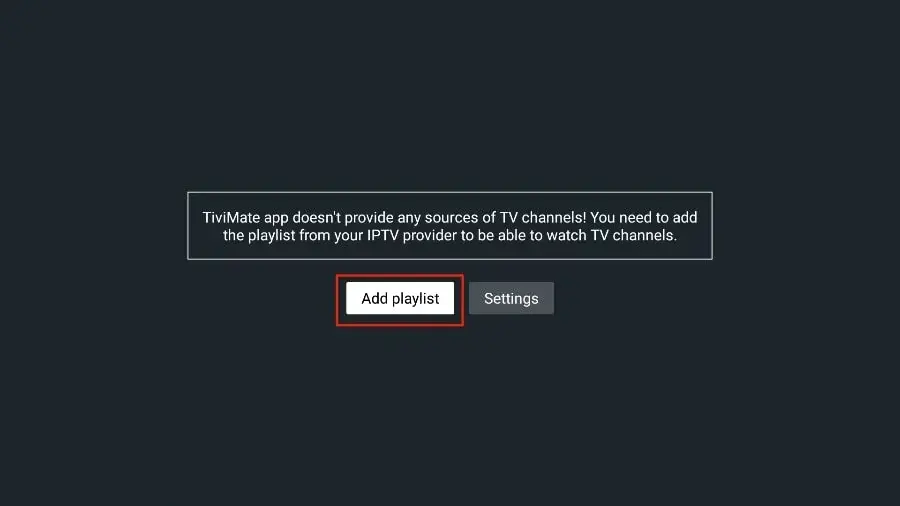
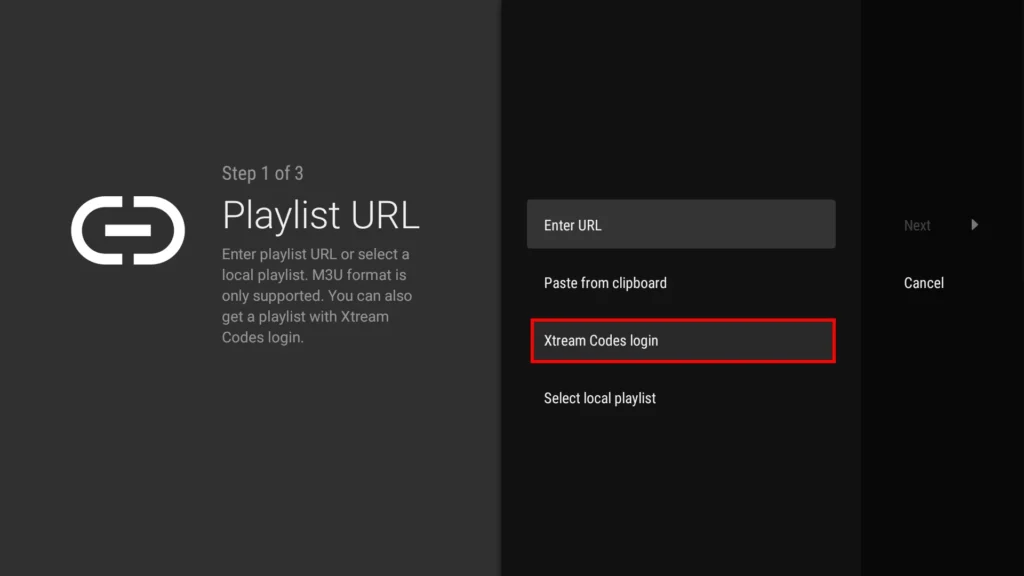
7 Xtream Login
- TiviMate will prompt you to add a playlist using an Xtream code, M3U link, or Stalker portal.
- Click on Xtream Codes login and then Next.
8 Complete Setup
- When you subscribe to StreamVista, you’ll receive an email containing your login details.
- Enter your Server Address, Username, and Password.
- Check Include VOD if you want VOD content.
- Go on and the channels will appear after a while.
- Congratulations! You’ve now completed the setup of the TiviMate app for seamless streaming.
Important About TiviMate
You can access Live TV channels through TiviMate, and Premium unlocks extra features like favorites, recording, and watching movies and series. The app can be used on up to 5 devices.
Premium Activation
To pay for TiviMate Premium, install the TiviMate Companion app on an Android phone or tablet, create an account, and then unlock Premium inside the Fire TV app.
Lifetime: $29.99
Yearly: $9.99