
Here's a quick guide to set up IPTV Smarters Pro on Windows
To begin using the StreamVista service on your Windows computer, simply follow the steps below. Install the app, add your login details, and start streaming your channels in minutes.
- Click on this link in order to install IPTV Smarters Pro App.

- Open the app once downloaded and click on the login option.
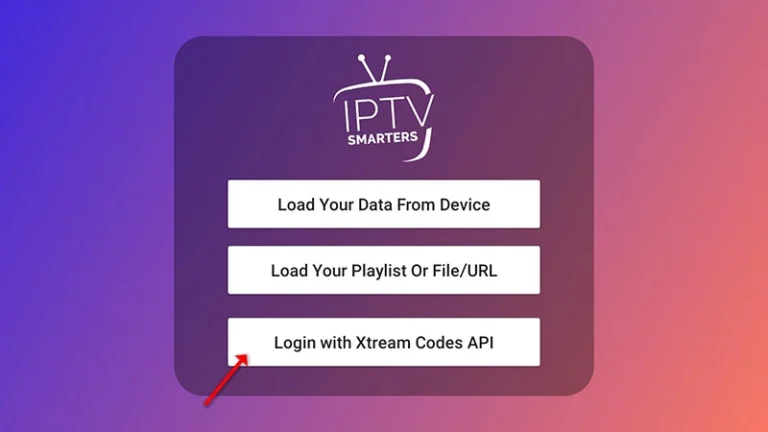
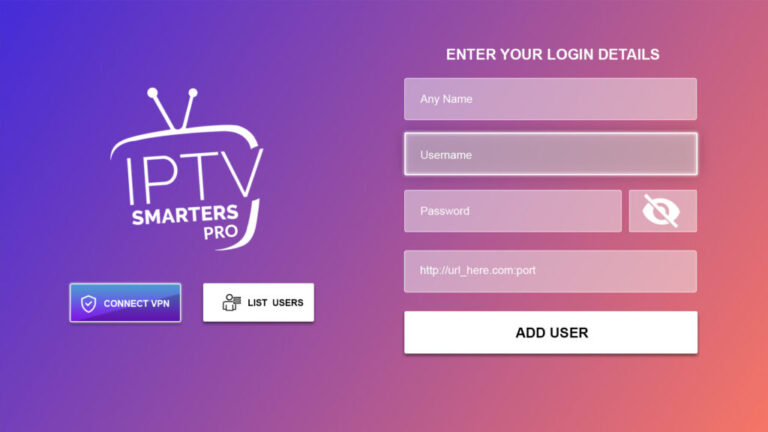
- Finally click on ADD USER and get your subscription credentials.
- Wait some seconds.
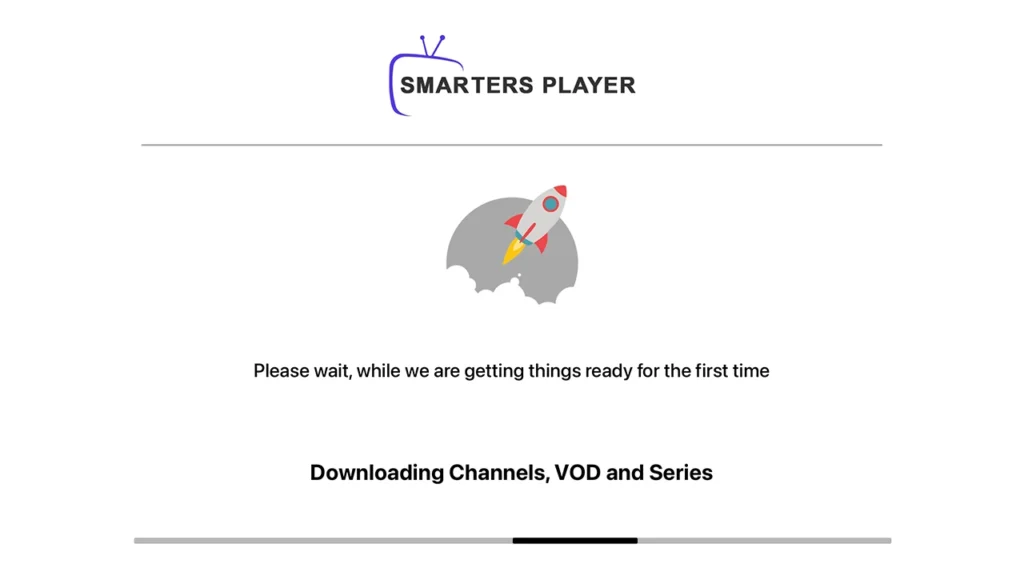
Quick Setup: IPTV Smarters Pro Configuration
There are two ways to do this: either using the Xtream Codes API (username, password, and server address) or using the M3U playlist. For a smoother setup experience, we recommend setting up via Xtream Codes API as it offers an integrated EPG system to enhance your streaming experience.
- Once logged in, access the user list screen and select your newly created profile.
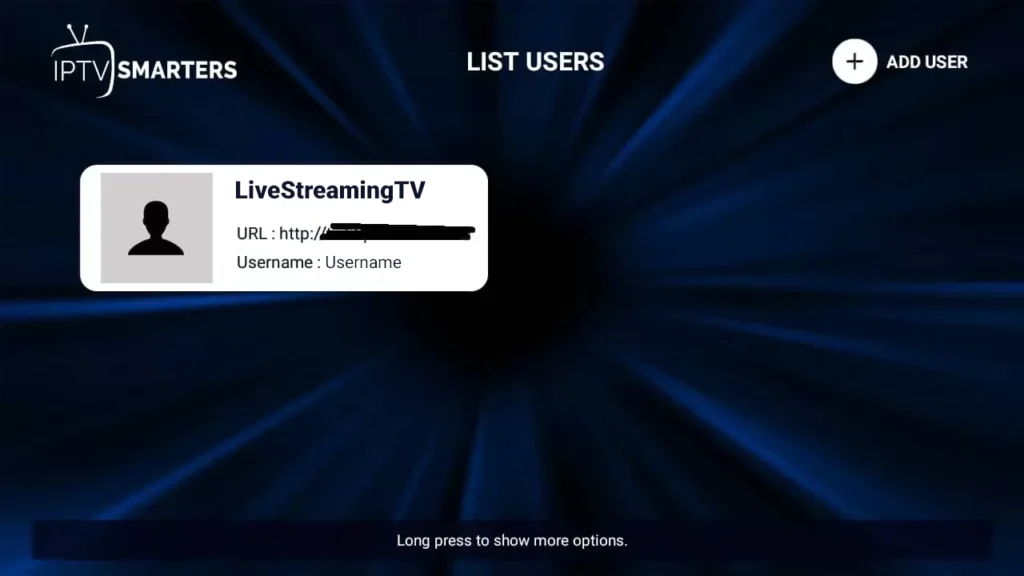
- Your channels list will appear after the profile loads successfully.
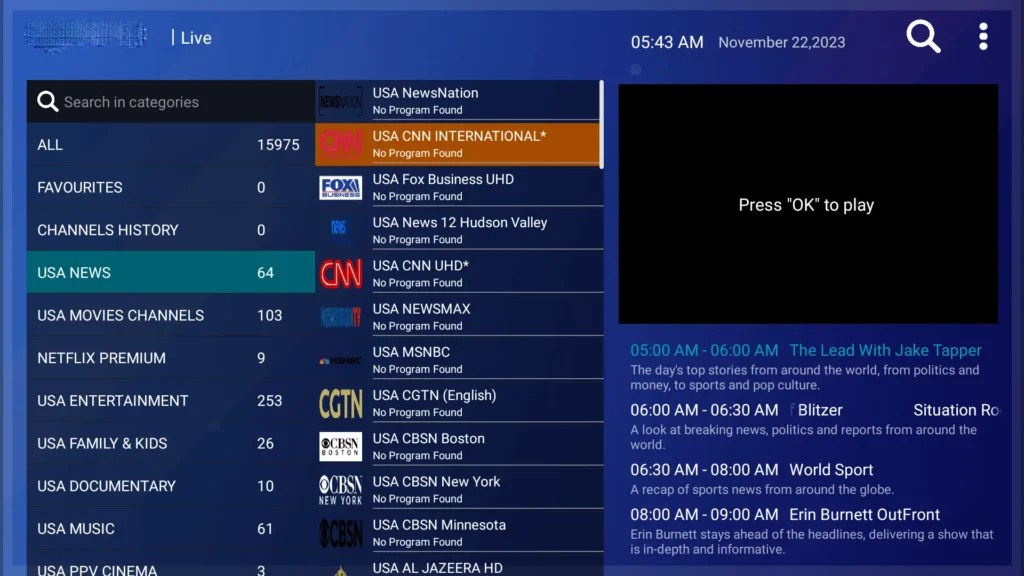
Enjoy Streaming
After your profile loads, you can start watching live TV, movies, and series right away.

NOTE: Use your provider’s Xtream Codes API credentials to log in, then wait for the channels and EPG to load.
Congratulations! You’ve now completed the setup on your Windows PC for seamless streaming.