
Install IPTV on IBO Player Pro for Android & ChromeOS
Follow this step-by-step guide to set up IPTV on Android and ChromeOS using M3U Playlist or Xtream Codes. Includes screenshots, playlist import instructions, EPG configuration, and troubleshooting tips.

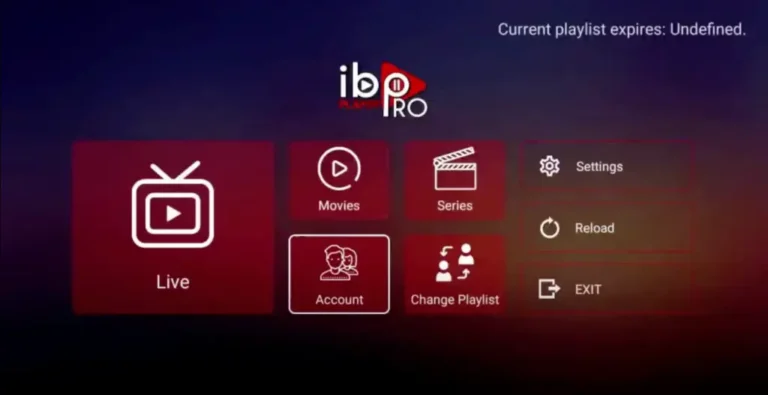
- Open IBO Player Pro and click on Account to see the activation screen displaying your MAC Address and Device Key.
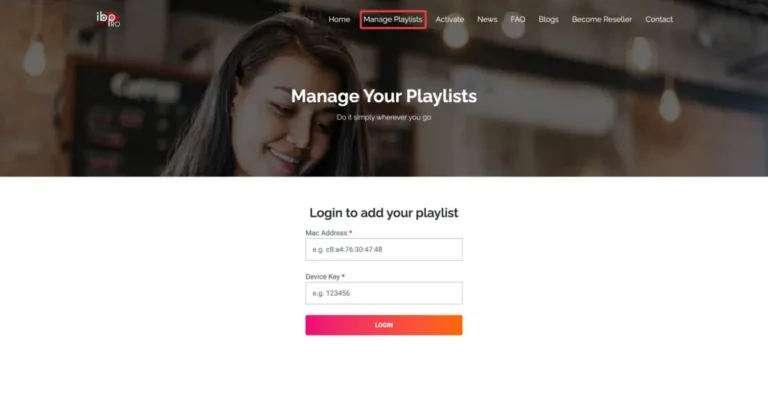
- Go to the IBO Player Pro website and click Manage Playlists in the menu section. Then enter the MAC Address and Device Key shown on your device and click Login.
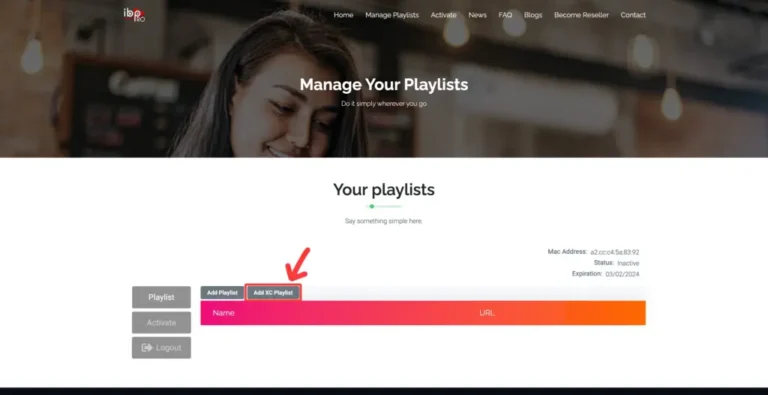
- Click Add XC Playlist to continue.
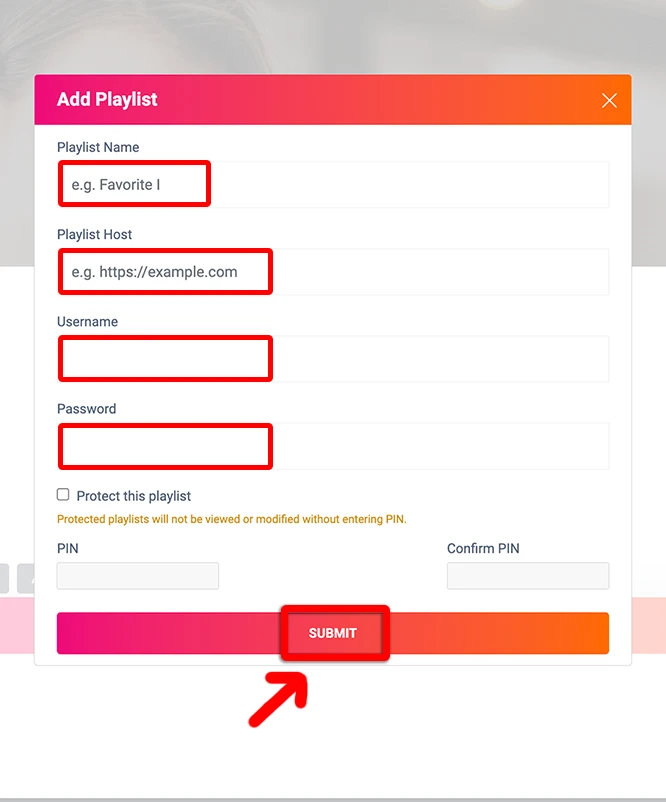
- Enter StreamVista as the Playlist Name in the first box. Then add the Xtream Codes login details: Server Address, Username, and Password. Finish by clicking Submit.
Finish Setup
After the playlist is submitted, return to your device and restart the IBO Player Pro app so the changes can take effect. Then select Continue, followed by Change Playlists, and connect to your StreamVista playlist.
Once the app reloads, your content will appear and you can start streaming right away.
Important Note
The app includes a 7-day trial period. When it expires, go back to the Manage Playlists page, log in with your MAC Address and Device Key, and complete the one-time activation payment.
Get Your Subscription
If you still need IPTV access, use the button below to visit our plans page.
Get your subscription