
Install IPTV on Smarters Pro on Fire TV Stick
Learn how to install and set up IPTV on Smarters Pro for Fire TV Stick using an M3U Playlist or Xtream Codes. Follow step-by-step instructions with screenshots, playlist login, EPG setup, and troubleshooting tips.

- Go to the Apps menu page from the FireStick Home page.
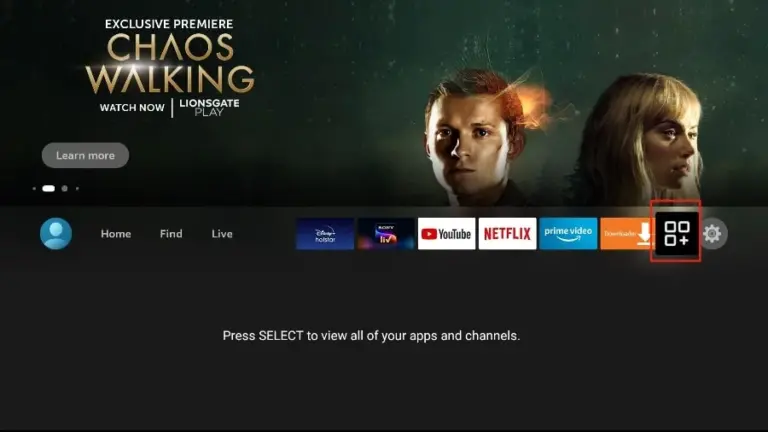
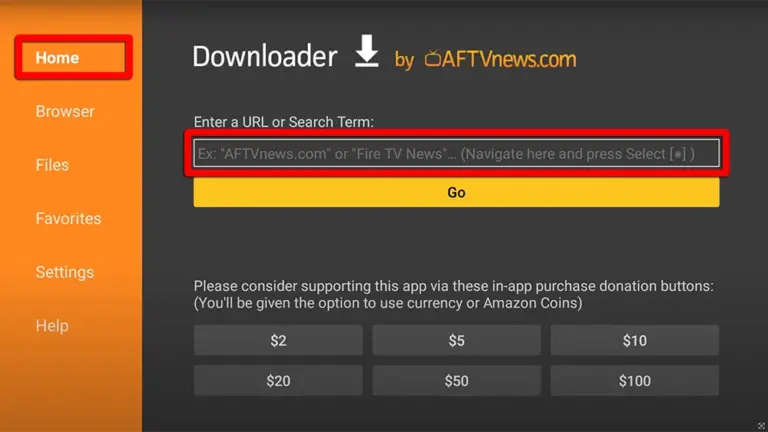
- Open the Downloader app and select Enter a URL on the Home screen.
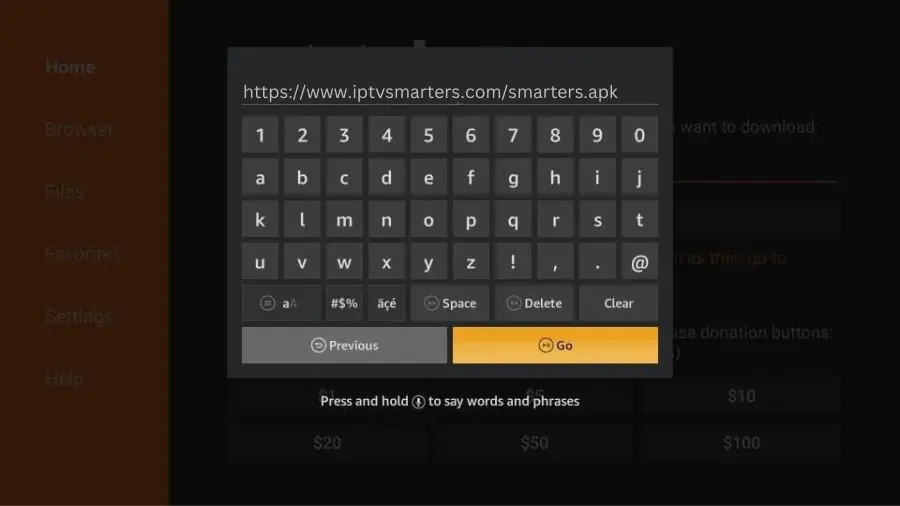
- Type the following URL exactly as how here: https://www.iptvsmarters.com/smarters.apk and click “GO”.
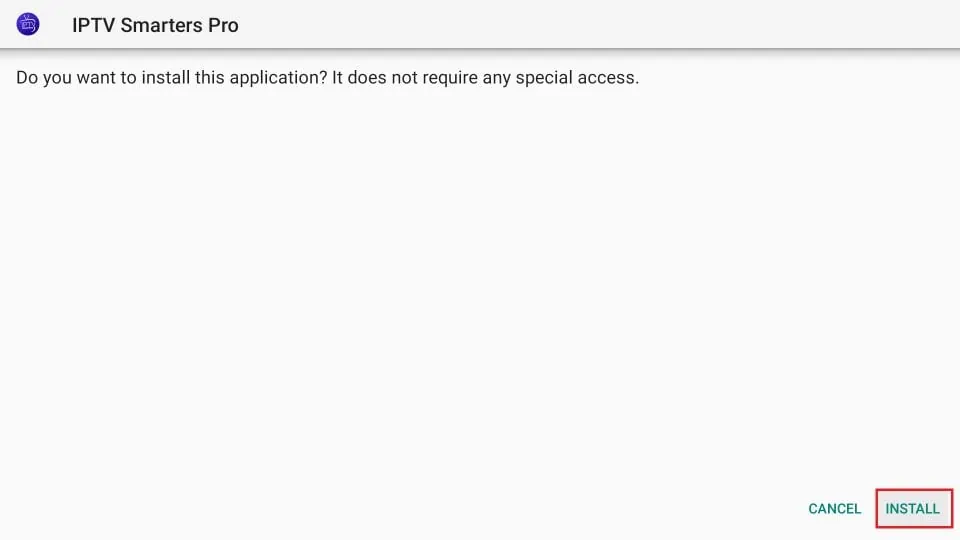
- When the download is complete, the Downloader app runs the APK file and installation begins. Click “Install”.
Quick Setup: IPTV Smarters Pro Configuration
There are two ways to do this. Either using the Xtream Codes API (Username, Password and server Address) or using the M3u playlist. For a smoother setup experience, we recommend setting up via Xtream Codes API as it offers an integrated EPG system to enhance your streaming experience.
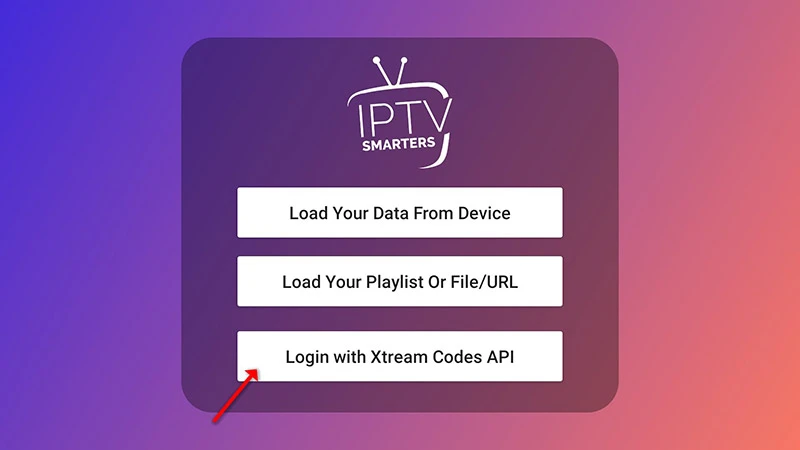
- Open the app once downloaded and click on “Add user” then click on “Login with Xtream Codes API”.
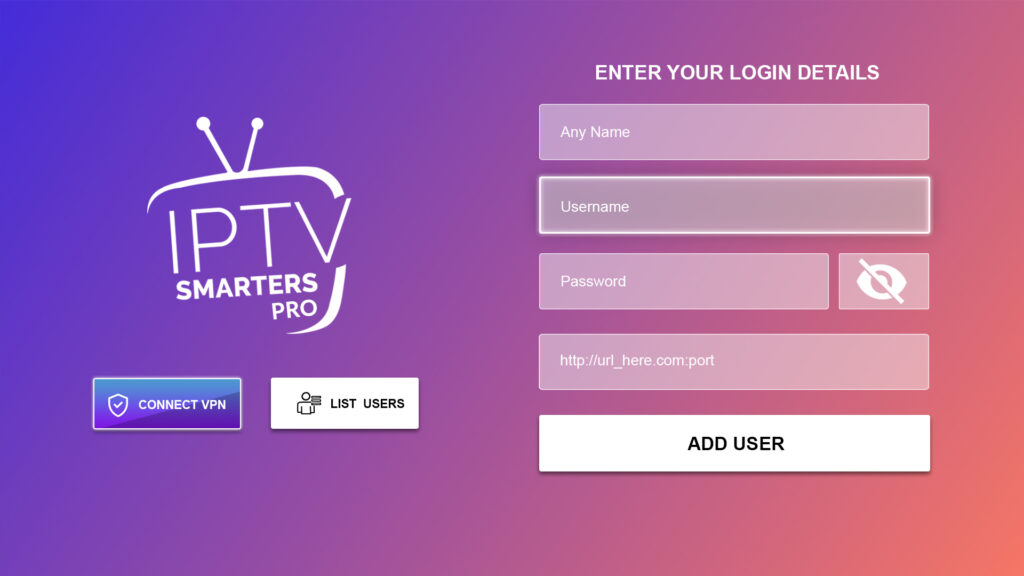
- Enter “StreamVista” as the Name in the first box. Then in the second, third, and fourth boxes, input the Xtream Codes login credentials (Username, Password and URL(Server address)) provided by us after subscribing. Finally click on “ADD USER“. Get Your Subscription Here.
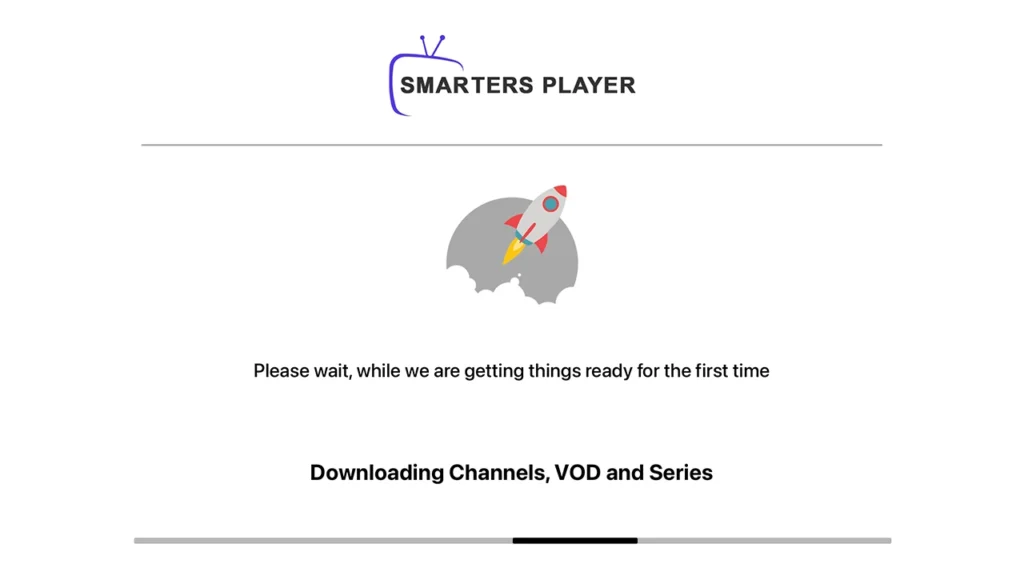
- Wait some seconds.
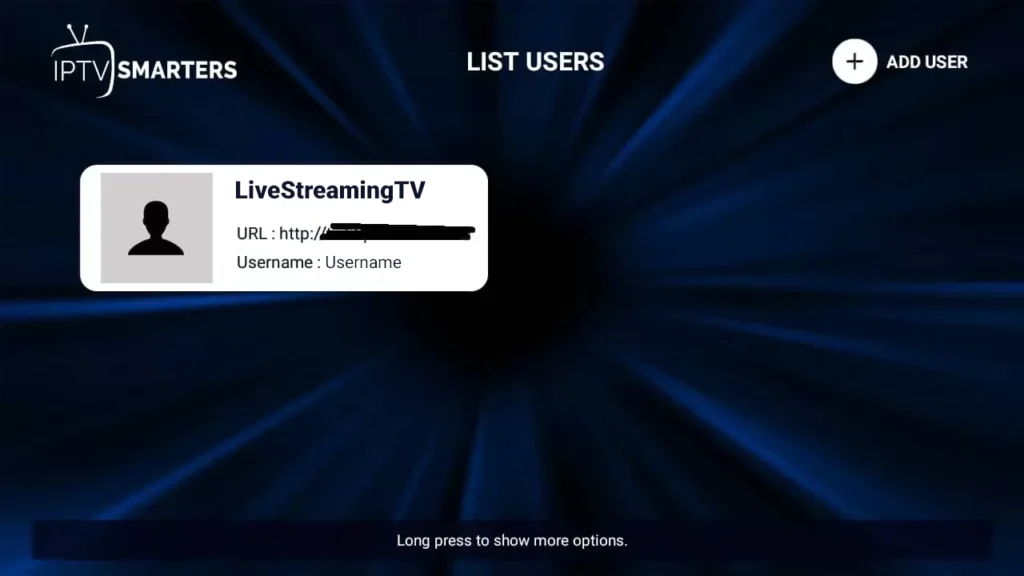
- Once logged in, access the user list screen and select your newly created profile, as demonstrated in the accompanying images.
Enjoy
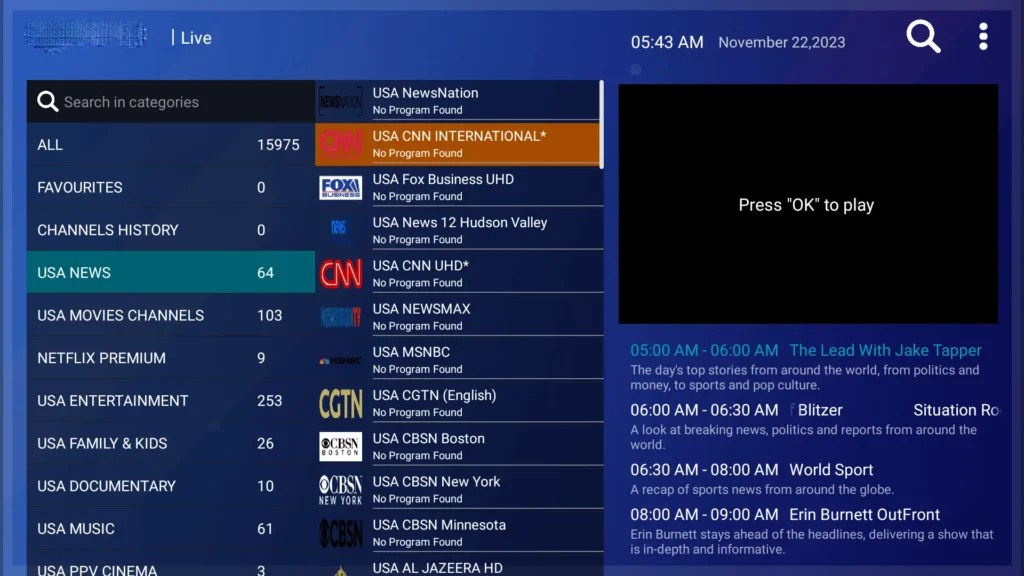

Enjoy your streaming experience once your profile loads and the channels appear.
NOTE: Use your provider’s Xtream Codes API credentials to log in, then wait for the channels and EPG to load.
Congratulations! You’ve now completed the setup of the IPTV Smarters Pro app for seamless streaming.